

In the realm of website development, image links play a crucial role in enhancing the user experience. If you’re a WordPress user, you may have come across image links while designing your website. They are a convenient tool that allows you to create clickable images, directing visitors to other pages, posts, or even external websites.
In this blog post, we’ll delve deeper into what is an image link in WordPress, exploring its functionality, creation process, diverse applications, and important SEO considerations.
What is an image link in WordPress?
An image link is simply a hyperlink attached to an HTML image tag. When you add a link to an image, it becomes clickable, enabling users to access the linked content or website by clicking on the image itself. This feature is widely used in WordPress to create visually appealing call-to-action buttons, banners, and other interactive elements.
How to create an image link in WordPress
Creating an image link in WordPress is a straightforward process. Here is a step-by-step guide:
- Log in to your WordPress dashboard and navigate to the post or page where you want to add the image link.
- Click on the + icon to add a new block and search for the Image block. Insert it and upload the image you want to use for the link.
- After the image uploads, select it, and click on the Insert Link icon in the options bar.
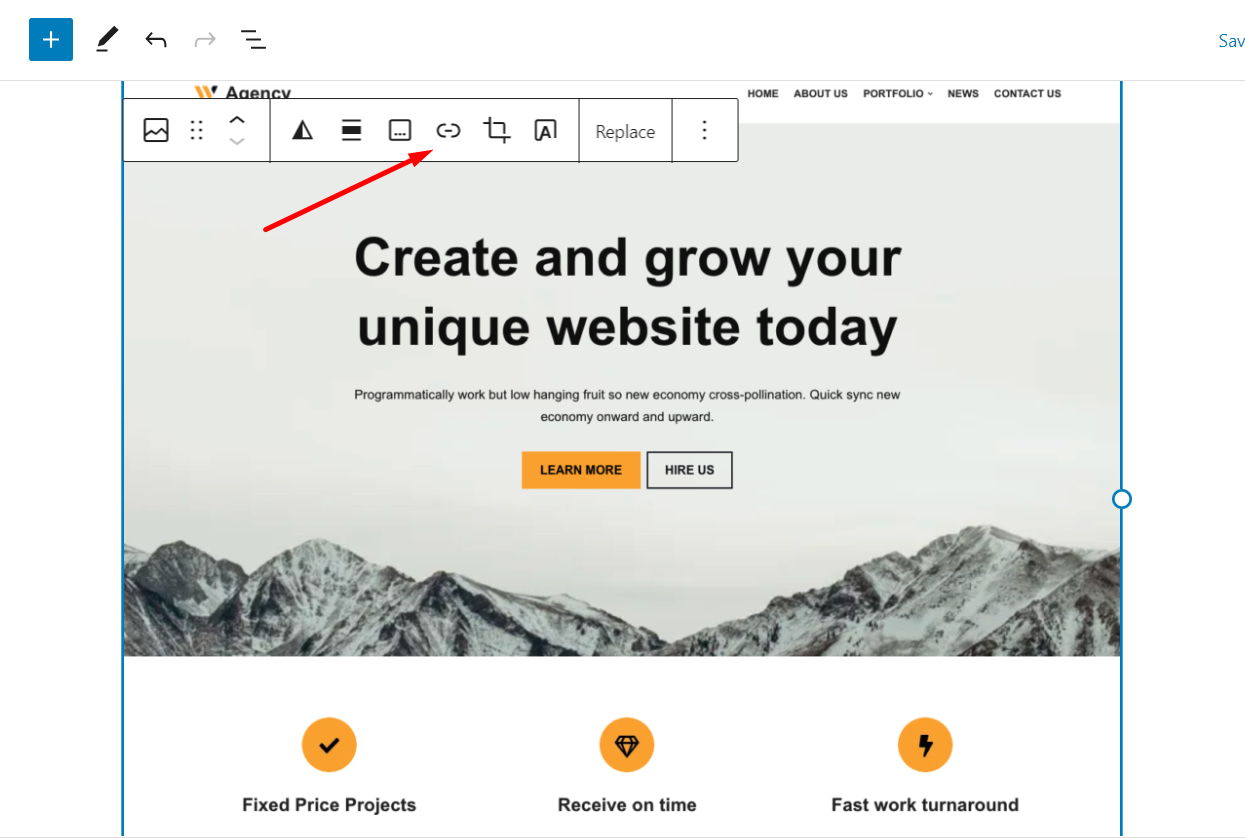
- Enter the desired URL into the empty field. You can link the image to an internal WordPress post or page, an external website, or any other URL.
- Once you’ve added the link, click on the Apply icon to add the image link to your WordPress content.

Uses for image links in WordPress
Now that you know what is an image link in WordPress and how to create one, it’s time to get familiar with its wide range of applications.
- Linking to other posts or pages: By adding image links, you can easily direct visitors to related content within your website, fostering increased user engagement and encouraging exploration of your site. For example, you might place a featured image at the end of a blog post that links to a related tutorial or product roundup.
- Linking to larger image files: Image links can open larger versions of images when clicked, which is useful for portfolios, screenshots, or product photos. In some WordPress setups, image and gallery blocks may also support an enlarge-on-click or lightbox-style display depending on the block settings, theme, or plugins.
- Linking to external websites: Utilizing image links, you can effectively promote affiliate products or partnerships by redirecting users to external websites, expanding your reach and potential for generating revenue or collaboration opportunities. A common example is a banner image that sends visitors to a partner page or featured offer.
SEO considerations for image links
To make the most of image links and improve your site’s online visibility, incorporate alt text and relevant file names.
Alt text
Always include descriptive and relevant alt text for your images. Alt text not only improves accessibility for visually impaired users but also provides search engines with valuable information about the image’s content. If the image is linked, make sure the alt text still makes sense in context and helps users understand what they are clicking. Decorative images generally should not be used as links unless they serve a clear purpose.

Relevant file names
When uploading images to WordPress, use descriptive file names that contain relevant keywords. This information helps search engines understand the image’s context and improves your website’s overall SEO.
Common image link tips
A few practical details can make image links easier to use. If you’re linking to another website, only open it in a new tab when it genuinely helps the visitor. It’s also smart to test linked images on mobile devices to confirm they are easy to tap and that the destination opens as expected.
For users who want a more technical view, an image link is typically created by placing an image inside a standard hyperlink. In HTML, that means an image element is wrapped in an anchor element.
Conclusion
Image links are a versatile tool in WordPress that can significantly enhance your website’s interactivity and visibility. By effectively using these links, you can direct users to relevant content, create eye-catching visual elements, and even boost your website’s SEO.
Next time you’re working on your WordPress site, remember the potential of image links and utilize them to create a more dynamic and interactive web presence.

FREE GUIDE
4 Essential Steps to Speed Up Your WordPress Website
Follow the simple steps in our 4-part mini series and reduce your loading times by 50-80%. 🚀
Or start the conversation in our Facebook group for WordPress professionals. Find answers, share tips, and get help from other WordPress experts. Join now (it’s free)!