

If you follow AI news even casually, you’ve seen three letters everywhere lately: MCP. It’s in plugin directories, in AI app settings, in developer Twitter, usually next to a screenshot of someone running their entire website from a chat window.
So what is MCP, what is an MCP server, and should a WordPress site owner care? Here’s the plain-English version, with the jargon kept to a minimum and the useful parts kept front and center.
What is MCP, in plain words?
MCP stands for Model Context Protocol. It’s an open standard, introduced by Anthropic in late 2024 and quickly picked up across the industry, that gives AI assistants a common language for talking to other software.
Think about what happens without it. You want AI help with your site, so you copy text out of WordPress, paste it into a chatbot, read the answer, then go back and apply the changes by hand. Every question is a copy-paste relay race, and the AI is permanently locked outside your site, guessing.
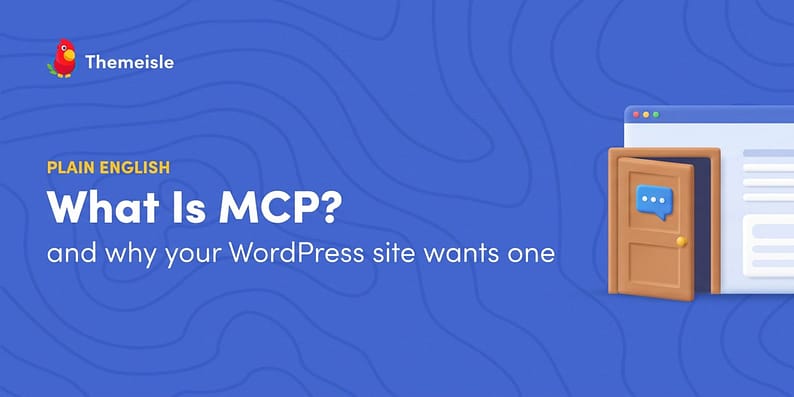
MCP replaces that with a proper door. Three roles live around the door: the client (the AI you use, like Claude or ChatGPT), the server (a small program that speaks MCP on behalf of something, like your website), and the tools (the specific things the server lets the client do: read this, update that, list those). The AI stays on its side, your site stays on yours, and the MCP server is the doorman that passes requests back and forth.
Why MCP showed up all at once
Before MCP, every AI-to-software connection was custom plumbing. If you wanted your AI to work with your docs, your calendar, your store, and your site, that was four separate integrations to build or buy, each with its own auth, quirks, and maintenance. Most people simply didn’t bother.
MCP standardizes the connection the way USB-C standardized charging cables. One protocol, many tools. An AI client that speaks MCP can work with any MCP server, and an MCP server built once works with every compatible client. That’s why it spread fast: it turned “integrate with everything, one at a time” into “integrate once.”
What an MCP server means for a WordPress site
On a WordPress site, the MCP server is a plugin. It listens for MCP clients and translates their requests into real WordPress actions. Two things matter here:
Tools, not magic. The server doesn’t give the AI free rein over your admin. It exposes a defined list of tools, things like “list recent posts,” “create a draft,” “update an SEO title” across the six big SEO plugins, or “show this week’s traffic.” The AI can only use what’s on the list, and good servers let you shrink the list yourself.
Permissions, not trust falls. Read and write are separate decisions. A read-only connection lets the AI explore and answer questions about your site without changing a thing. Write access is something you grant deliberately, per content type, when it’s earned. The good ones keep an activity log you can read, so “what did the AI do?” is always answerable.
What you can actually do with it today
Once your site speaks MCP, the chores start moving. With the free Easy MCP AI plugin (disclosure: it’s built by ThemeIsle, this blog’s parent), a connected AI can:
- ✍️ Handle content: draft posts from your notes, rewrite them, schedule and publish on your say-so.
- 🖼️ Tidy the media library: upload images and write alt text for the ones missing it.
- 💬 Moderate comments: summarize what’s pending, flag the spam, let you approve in the chat.
- 📊 Answer analytics questions: “which pages got the most traffic this week?” or “what keywords does my homepage rank for?” straight from your GA4 and Search Console data.
- 🛒 Report on your shop: today’s WooCommerce orders and revenue, on request.
It’s also not the only route in. WordPress also maintains its own MCP adapter project, and several plugins now ship MCP servers of their own. The full tool and integration list lives on easymcpai.com. If you’re comparing options, the roundup of the best WordPress MCP server plugins lays them side by side.


How MCP actually works (lightly technical)
For the curious, the mechanics are refreshingly boring. When an AI client connects to an MCP server, once connected, one of the first things it does is ask for the tool list: the server replies with every tool it offers, each with a name, a description, and the inputs it expects. From then on, the conversation is structured messages (JSON-RPC, for the technically inclined): the client calls a tool with arguments, the server runs it against WordPress, and the result goes back as data.
That discovery step is what makes MCP feel like magic when it works and like a locked door when it doesn’t: if a tool isn’t on the list, the AI can’t use it. Which is exactly why per-tool permissions and read-only tokens are such a clean fit for the protocol.
Who should care (and who can safely skip it)
Worth your ten minutes if you publish regularly, run a shop, manage several sites, or keep postponing the same maintenance chores. The pattern that pays off is always the same: repetitive work you’d normally do by clicking around wp-admin.
Safe to skip, for now, if your site changes twice a year and you enjoy the admin. MCP’s value scales with how much routine work your site generates. Also fair to wait if the idea of an AI touching your site makes you uneasy; read-only connections are the low-risk way to try it, but nobody is required to try anything.
FAQ about MCP 🙋
The protocol is an open standard, free to use. MCP server plugins like Easy MCP AI are free on WordPress.org. Costs only appear from connecting a paid third-party data provider.
No. Any MCP-compatible client works: Claude, ChatGPT, Gemini, Cursor, and a growing list of others. The server on your site doesn’t care which one connects, as long as it speaks the protocol.
As safe as the permissions you grant. Start with read-only access (the AI can look but not change), use scoped tokens, and pick a server with a full activity log and change history. Write access is a deliberate later step, not a default.
Getting started (the short version)
The whole setup takes a few minutes: install an MCP server plugin, connect your AI client, and start with read-only access while you learn what it’s good at. The full walkthrough with screenshots lives in the step-by-step guide to connecting Claude or ChatGPT to WordPress.
One habit worth copying from the start: read-only first, check the activity log for a week, then grant write access one capability at a time. Boring, yes. Also the difference between a calm rollout and a support ticket.
Final thoughts 🏁
MCP is plumbing, not magic: a common language that lets your AI assistant talk to your website directly, with tools and permissions instead of copy-paste. On WordPress it turns “chores, eventually” into “ask, check, approve.” And the sensible way in is read-only first, write later, logged always.
What’s the first chore you’d hand to an AI on your site? Let us know in the comments section below!

FREE GUIDE
4 Essential Steps to Speed Up Your WordPress Website
Follow the simple steps in our 4-part mini series and reduce your loading times by 50-80%. 🚀


